Many companies invest in a learning management system only to watch it gather digital dust. Employees avoid it, complain about complexity, or need constant help. The biggest reason? The platform wasn’t built with non-tech-savvy users in mind.
After helping numerous organizations improve their training platforms, I’ve learned that simplicity and intuitiveness matter more than flashy features. A truly user-friendly LMS can dramatically increase adoption and training success — especially for employees who aren’t comfortable with technology.
In this guide, I’ll show you practical steps to create an LMS that feels easy and welcoming for everyone on your team.
Why User-Friendliness Matters More Than You Think
If employees find your learning management system confusing, they’ll disengage quickly. This leads to poor completion rates, wasted training budgets, and frustrated managers.
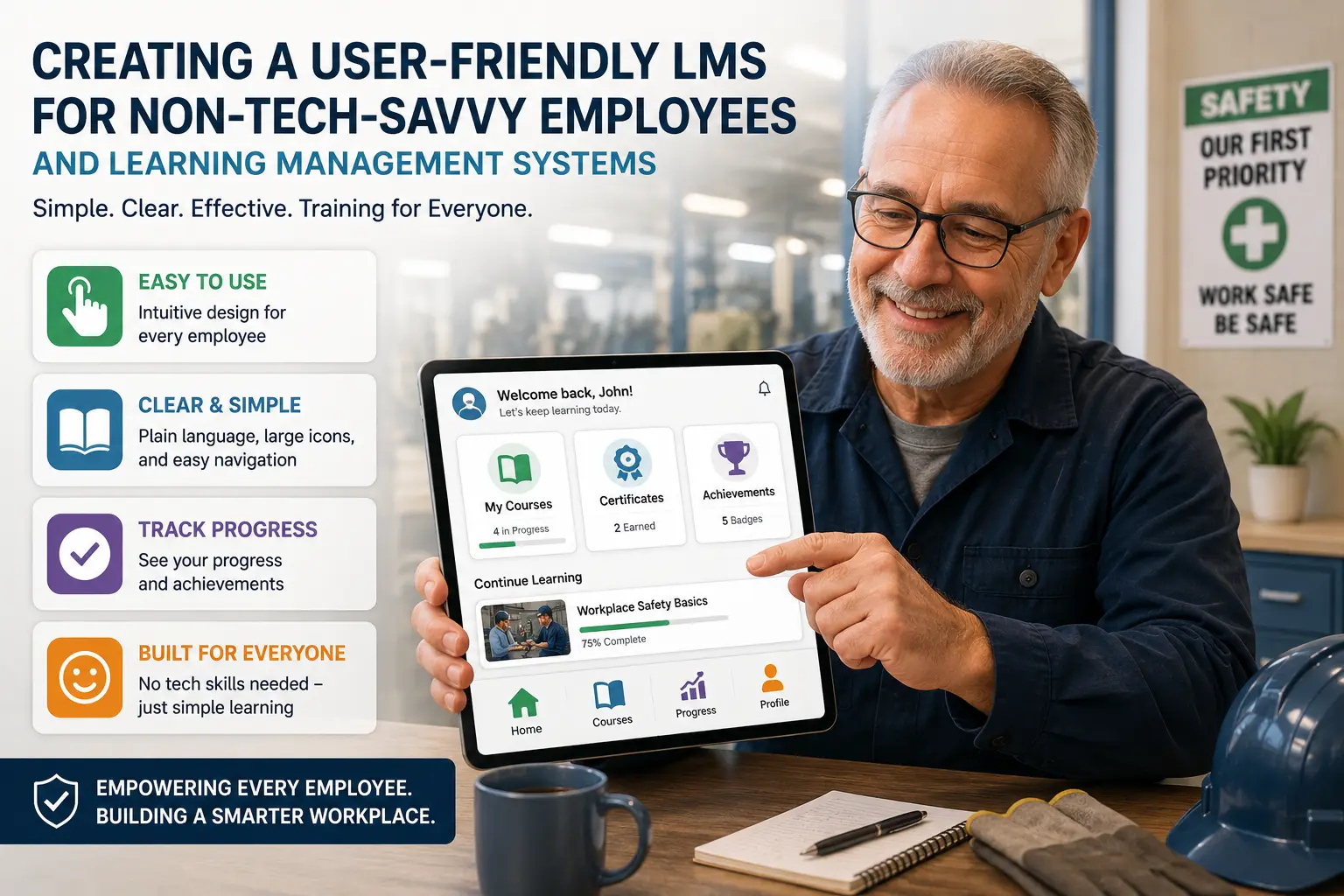
Non-tech-savvy employees — common in manufacturing, retail, healthcare, and field services — need clear interfaces, minimal clicks, and straightforward language. A complicated system creates resistance instead of learning.
The goal is to make training feel helpful, not like another technical burden.
Key Principles for a User-Friendly LMS
Focus on these foundations when designing or customizing your learning management system:
- Simple Navigation — Use clear labels, big buttons, and logical menu structure.
- Mobile Optimization — Many employees use phones, not desktops.
- Minimal Text, Maximum Clarity — Short instructions, helpful icons, and visual cues.
- Consistent Design — Same style and layout across all pages to reduce confusion.
- Progressive Learning — Start simple and unlock advanced features as users gain confidence.
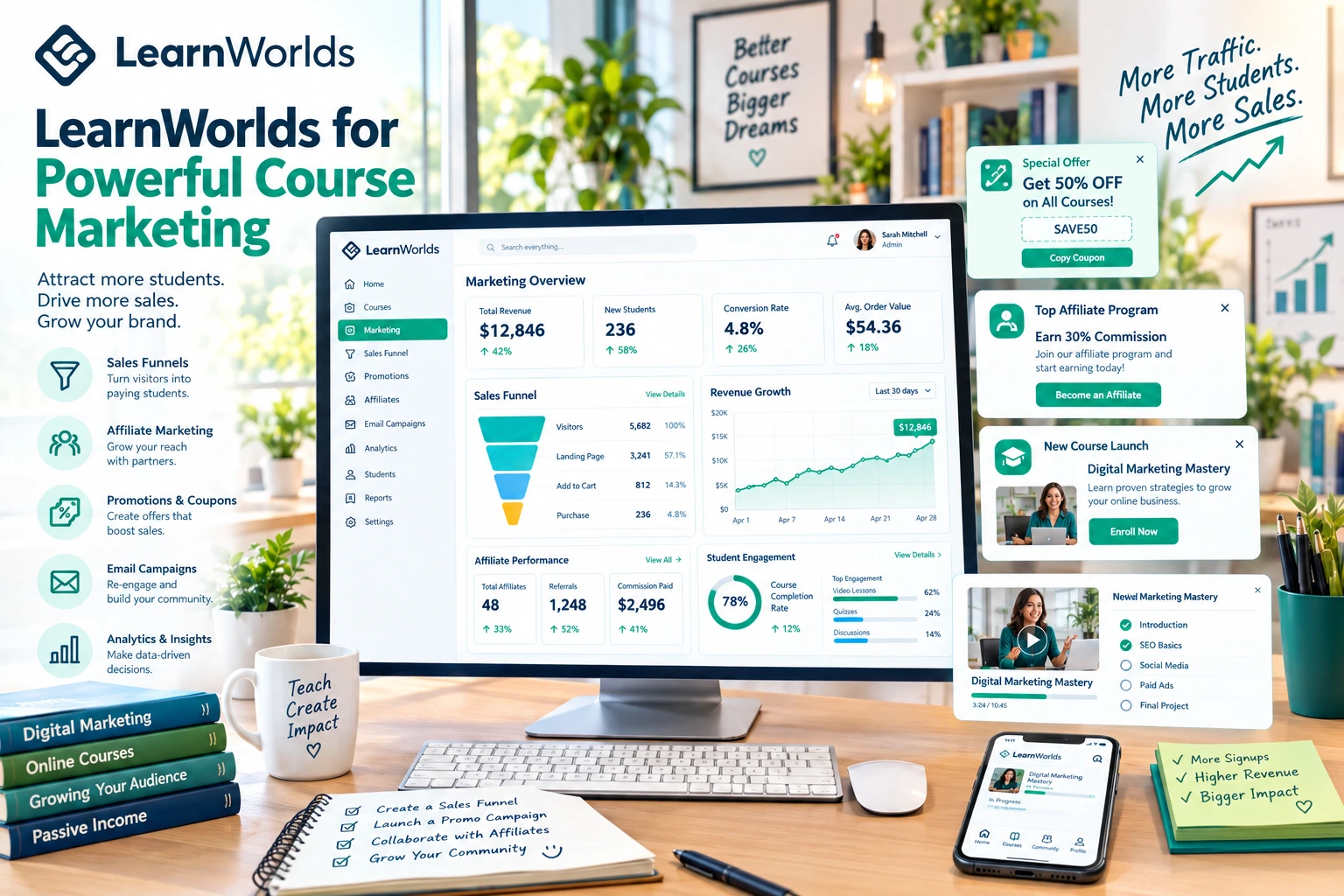
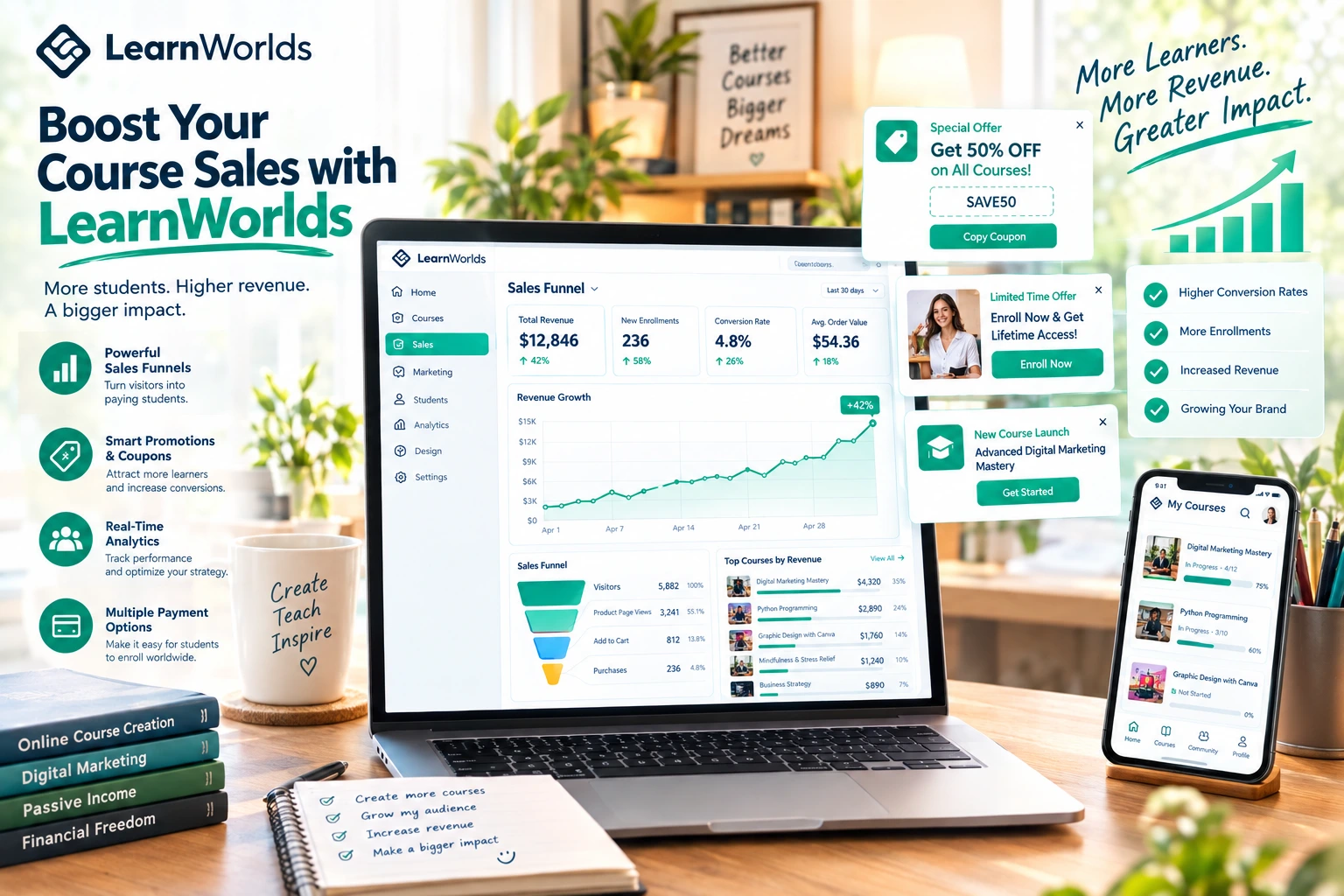
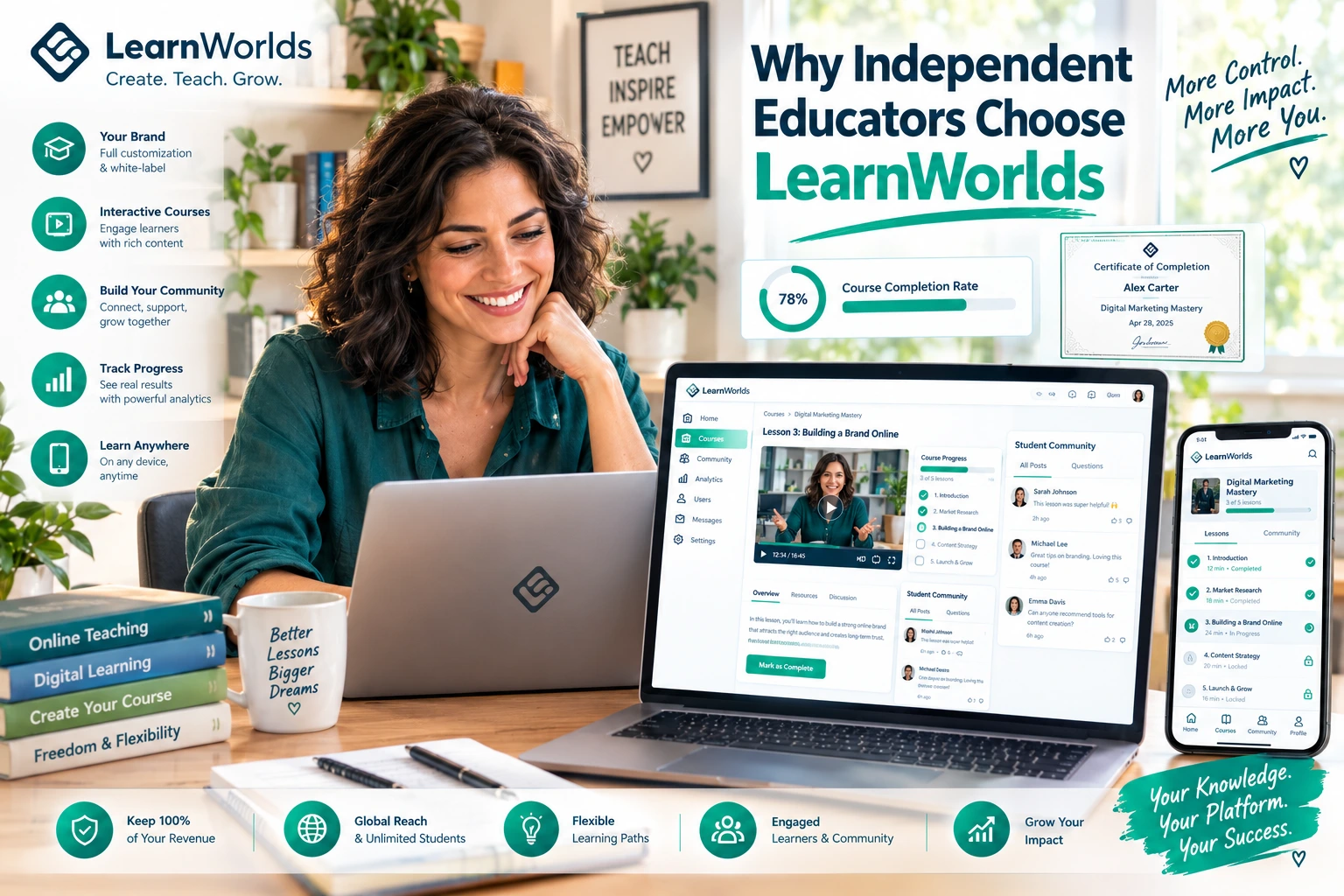
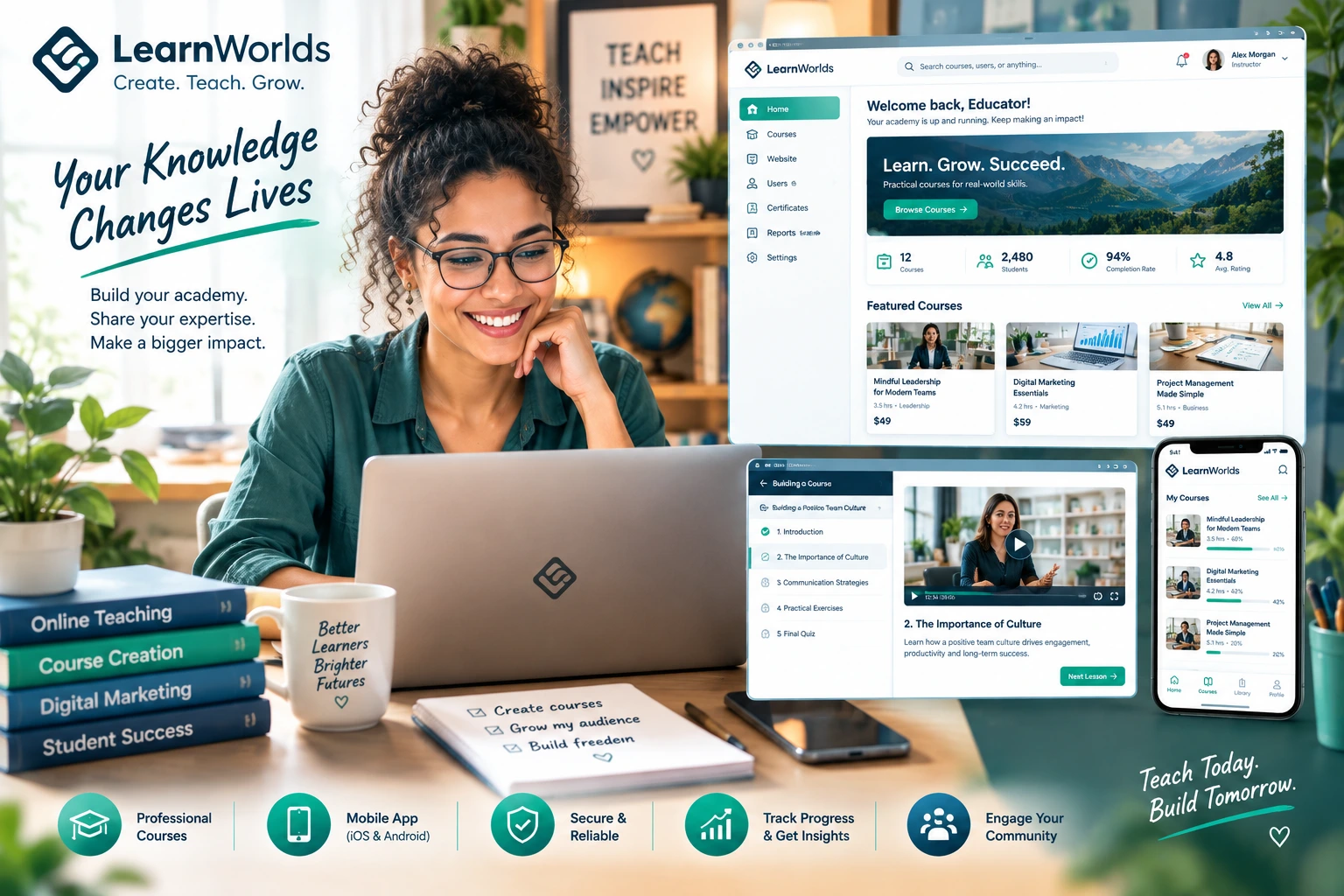
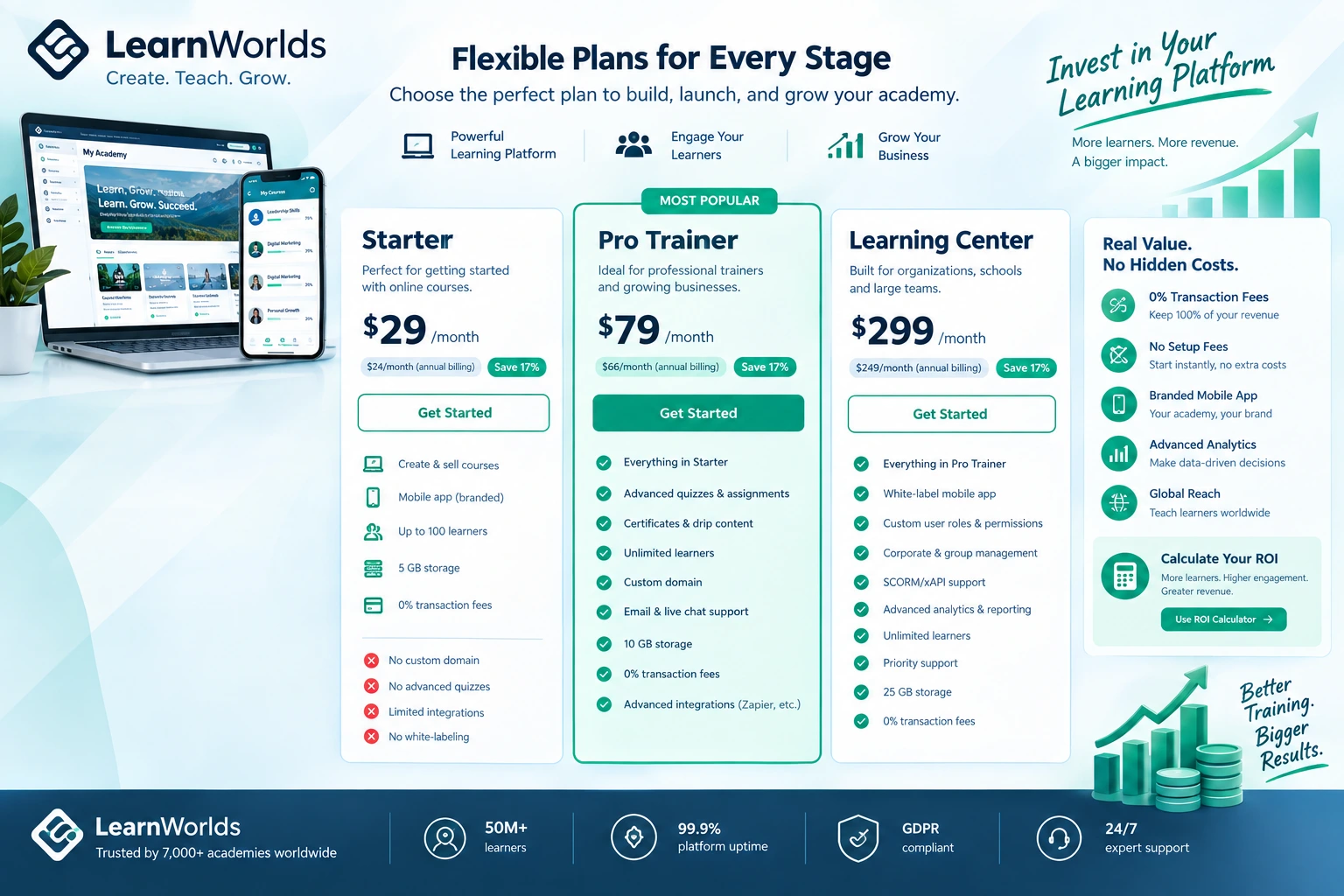
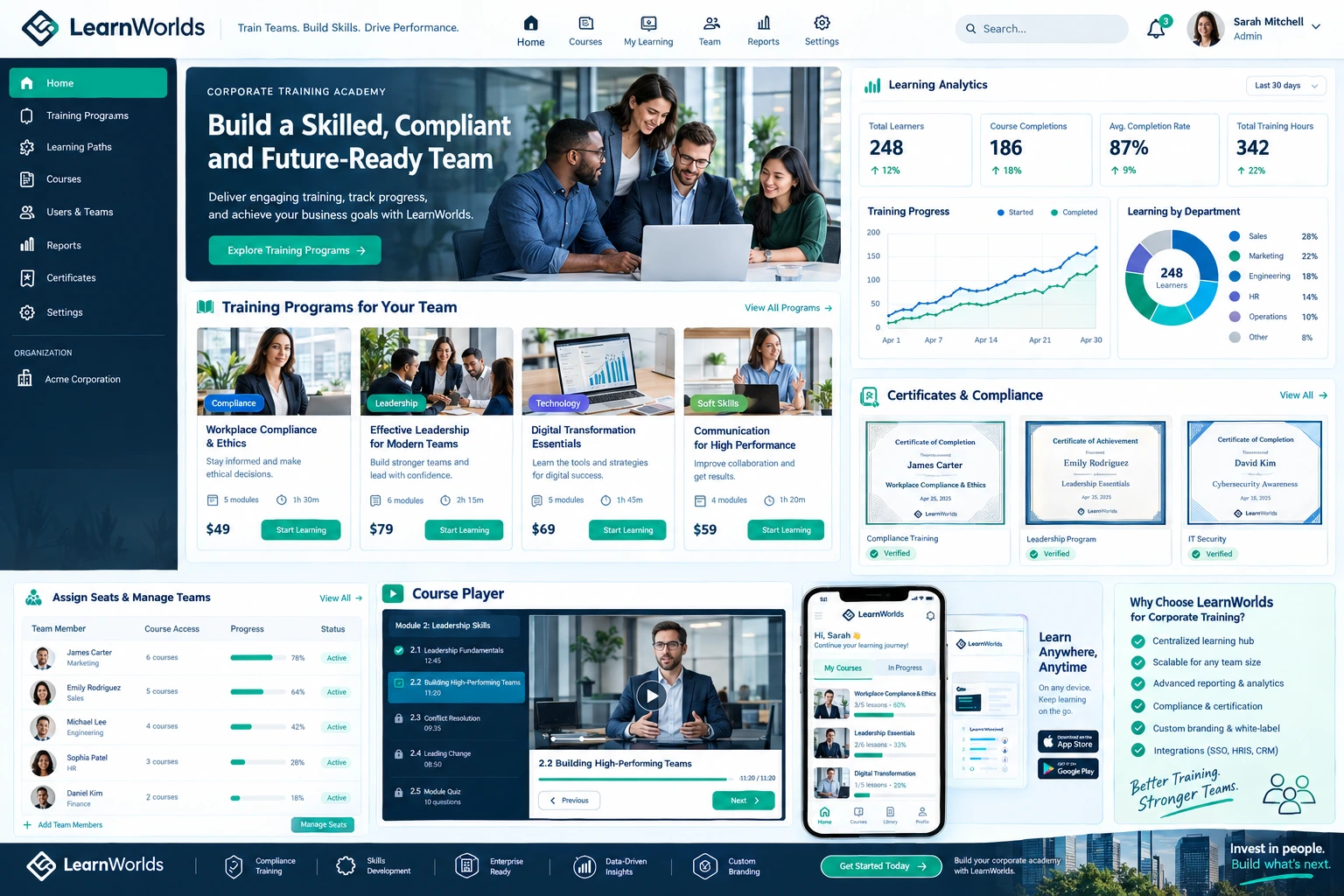
Comparison Insight: Generic platforms like Thinkific or Kajabi work well for tech-comfortable users. LearnWorlds offers nice engagement tools. However, for non-tech employees, a custom or heavily tailored LMS usually creates the best experience because it can be simplified exactly to your team’s needs.
Real-World Example
A manufacturing client I worked with had terrible LMS adoption. Their previous system used technical terms and too many menus. After redesigning with a user-friendly approach — large buttons, voice-over options, step-by-step guides, and a simplified dashboard — completion rates jumped from 29% to 87% within three months. Workers who previously avoided computers started finishing training on their phones during breaks.
Step-by-Step: Building a User-Friendly LMS
Follow this practical process:
- Understand Your Users — Interview or survey non-tech employees about their comfort level with technology and pain points.
- Simplify the Interface — Use large fonts, high-contrast colors, and plenty of white space. Remove unnecessary options.
- Create Clear Onboarding — Build a simple “Getting Started” tour with video or interactive walkthrough.
- Use Plain Language — Replace jargon with everyday words. Add tooltips and help icons.
- Add Support Features — Include chat support, video tutorials, and a simple help center inside the LMS.
- Test with Real Users — Have non-tech employees test every step and gather honest feedback.
- Iterate Continuously — Monitor usage and make improvements based on actual behavior.
This approach ensures the system works for the people who need it most.
Common Mistakes That Hurt Usability
- Adding too many features at launch
- Using corporate or technical language
- Ignoring mobile users
- Skipping user testing with actual employees
- Assuming everyone learns the same way
An experienced developer can help you avoid these pitfalls. If you need support building a simpler system, feel free to explore options at Digital Wind IT.
FAQ: User-Friendly LMS for Non-Tech Employees
What makes an LMS truly user-friendly?
Large buttons, clear navigation, minimal steps, mobile compatibility, and plain language instructions.
Can I make an existing LMS more user-friendly?
Yes. Heavy customization, interface redesign, and adding guided features can significantly improve usability.
How important is mobile access?
Extremely important. Many non-tech employees prefer using their phones and may not have easy computer access.
How do I measure if my LMS is user-friendly?
Track adoption rates, completion percentages, support tickets, and gather direct feedback through surveys.
Is a custom LMS necessary for good usability?
Not always, but it often provides the best results because you can remove complexity that generic platforms force upon users.
Create an LMS That Everyone Can Use
A user-friendly learning management system removes barriers and helps every employee — especially non-tech-savvy ones — develop new skills confidently. When training feels easy and approachable, people actually use it.
The best LMS isn’t the one with the most features. It’s the one your entire team can navigate without frustration or extra help.
If your current training platform is too complicated or underused, it might be time for a simpler, more thoughtful solution. Visit Digital Wind IT for custom development or connect with me at Shihab Morshed to discuss how to make your learning experience more accessible.
When you build with your least tech-savvy employees in mind, everyone benefits.