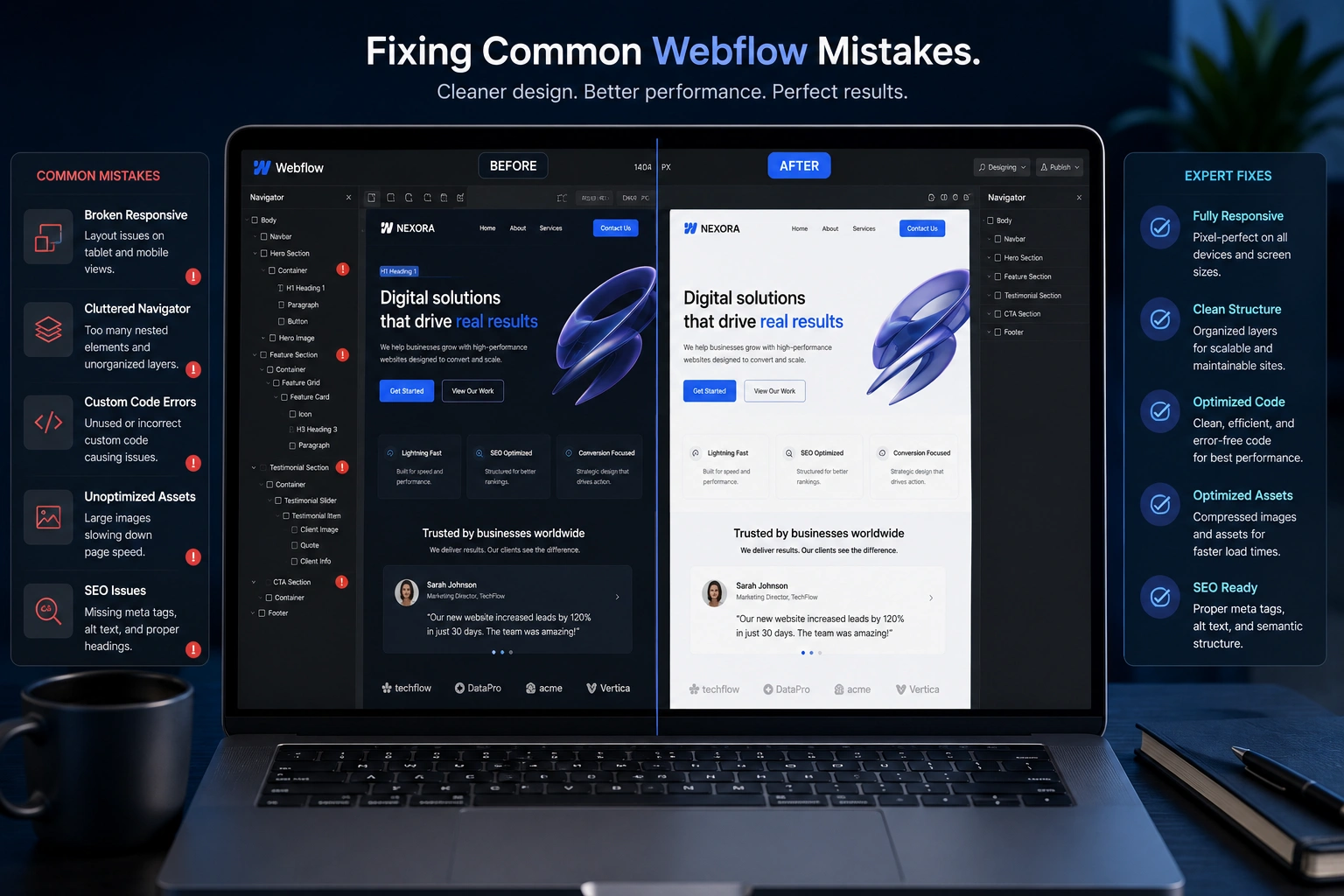
I’ve built dozens of Webflow sites for clients ranging from solopreneurs to growing agencies. Every single project taught me something new about what trips people up. The truth is, Webflow gives you incredible power, but that power comes with a learning curve. Make a few wrong moves early and you’ll end up with slow sites, broken mobile views, or pages that never rank.
As a Webflow developer, I’ve seen the same five mistakes over and over. In this post, I’ll walk you through each one, explain why it hurts your site, and show exactly how I fix it. Whether you’re a beginner trying to launch your first project or an intermediate designer scaling up, these fixes will save you hours of frustration.
Why These Webflow Mistakes Matter More Than You Think
Many people treat Webflow like a simple drag-and-drop tool. It’s not. It’s a professional visual development platform that outputs clean code. When you ignore best practices, you create technical debt that shows up in slow load times, poor user experience, and lost search traffic.
I’ve fixed sites where clients lost thousands in potential revenue because of basic errors. The good news? Most are easy to correct once you know what to look for. Let’s dive in.
Mistake 1: Poor Class Management and Naming Chaos
This is by far the most common issue I see. Beginners create new classes for every element or rely on auto-generated names like “Div Block 47.” Later, changing one style breaks something else on another page.
How a Webflow expert fixes it:
I follow a structured naming system right from the start. Use clear, reusable classes like section-heading, button-primary, or card-wrapper. Combine them thoughtfully instead of stacking endless combo classes.
In one project for a coaching client, the site had over 200 unique classes for similar elements. I audited everything, consolidated to under 80, and improved maintainability dramatically. The client could now update styles site-wide in minutes instead of hours.
Mistake 2: Neglecting True Responsive Design
Webflow makes responsive design easy, but many people only check tablet view and call it done. They forget about mobile-first thinking or large desktop breakpoints.
Result? Text that’s too small on phones, images that overflow, or navigation that becomes unusable.
The fix:
Start mobile-first. Set base styles for the smallest screen, then adjust upward for tablet and desktop. Use Webflow’s breakpoint controls properly and always test on real devices. I run every site through BrowserStack before handover.
Mistake 3: Ignoring Performance Optimization
Uncompressed images, too many animations, and heavy custom code kill your Core Web Vitals. Webflow sites should be fast by default, but bad habits undo that advantage.
Expert approach:
- Compress images before upload (I aim for under 100KB for most hero images).
- Limit interactions and use “While scrolling” or “Page load” triggers wisely.
- Clean up unused symbols and classes regularly.
One e-commerce client came to me with 4+ second load times. After optimization, we hit under 1.5 seconds. Their conversion rate jumped noticeably.
Mistake 4: Weak Webflow SEO Setup
Many assume Webflow handles everything automatically. It doesn’t. Forgotten project settings, duplicate content from staging, poor heading structure, and missing schema all hurt rankings.
How I handle SEO as a Webflow developer:
I always configure proper 301 redirects, set custom meta titles and descriptions, ensure clean URL slugs, and submit an optimized sitemap. I also pay attention to semantic HTML and internal linking.
Compared to WordPress sites I’ve audited, well-built Webflow projects often have cleaner code and better out-of-the-box speed, which helps with SEO when the fundamentals are done right.
Mistake 5: Overcomplicating Structure and Interactions
Beginners love adding every animation possible. The result is a distracting, slow site that feels unprofessional.
The professional way:
Less is more. Use animations to guide attention, not entertain. Keep your layer structure logical and use Webflow CMS collections properly for scalable content like blogs or product pages.
Step-by-Step: How I Audit and Fix a Problematic Webflow Site
When a new client brings me a messy project, here’s my process:
- Backup everything – Never work on the live site.
- Run a full audit – Check classes, responsive views on multiple devices, Lighthouse score, and SEO settings.
- Fix class structure – Rename and consolidate.
- Optimize assets – Compress images and review fonts.
- Clean interactions – Simplify or remove unnecessary ones.
- Test and launch – Preview thoroughly, then publish with proper SEO configuration.
This systematic approach turns chaotic sites into maintainable, high-performing ones.
Real-World Example: From Frustration to Smooth Site
A freelance designer contacted me after struggling with their portfolio site for weeks. It looked great on desktop but was unusable on mobile, rankings were poor, and they couldn’t easily add new case studies.
I rebuilt the CMS structure, fixed responsiveness, optimized everything, and added proper Webflow SEO elements. Within a month, organic traffic increased and the client landed two new projects directly from the updated site. The difference wasn’t flashy design — it was solid fundamentals.
Troubleshooting Common Webflow Issues
- Site feels slow? Check image sizes and animation count first.
- Styles breaking across pages? You probably have conflicting combo classes.
- Mobile menu not working? Double-check interactions and z-index values.
- Not ranking? Review project settings and ensure staging isn’t indexed.
If you’re stuck, reaching out to an experienced Webflow agency or developer can save weeks of trial and error.
FAQ: Webflow Mistakes and Solutions
How long does it take a Webflow expert to fix common mistakes?
Simple audits and fixes usually take 4–8 hours. Complex sites with heavy custom code can need 2–3 days.
Is Webflow good for SEO compared to WordPress?
Yes, when set up correctly. Webflow gives cleaner code and excellent speed, but you still need to handle metadata and content strategy properly.
Should beginners use Webflow templates?
Templates are fine as starting points, but always customize heavily and follow proper class practices to avoid bloat.
What’s the biggest mistake with Webflow CMS?
Not planning collection fields and structure properly upfront. It makes future updates painful.
When should I hire a Webflow developer?
If your site needs to drive serious business results, handle complex interactions, or scale with CMS content, professional help pays for itself quickly.
Ready to Build Better Webflow Sites?
Avoiding these mistakes separates amateur projects from professional, high-converting websites. As a Webflow expert, I’ve helped many clients turn frustrating builds into assets that actually grow their business.
If you’re tired of fighting with your Webflow site or want to launch something that works from day one, visit my site or check out our services at Digital Wind IT. Let’s build something solid together.
What Webflow struggle are you facing right now? Drop a comment below — I’m happy to point you in the right direction.