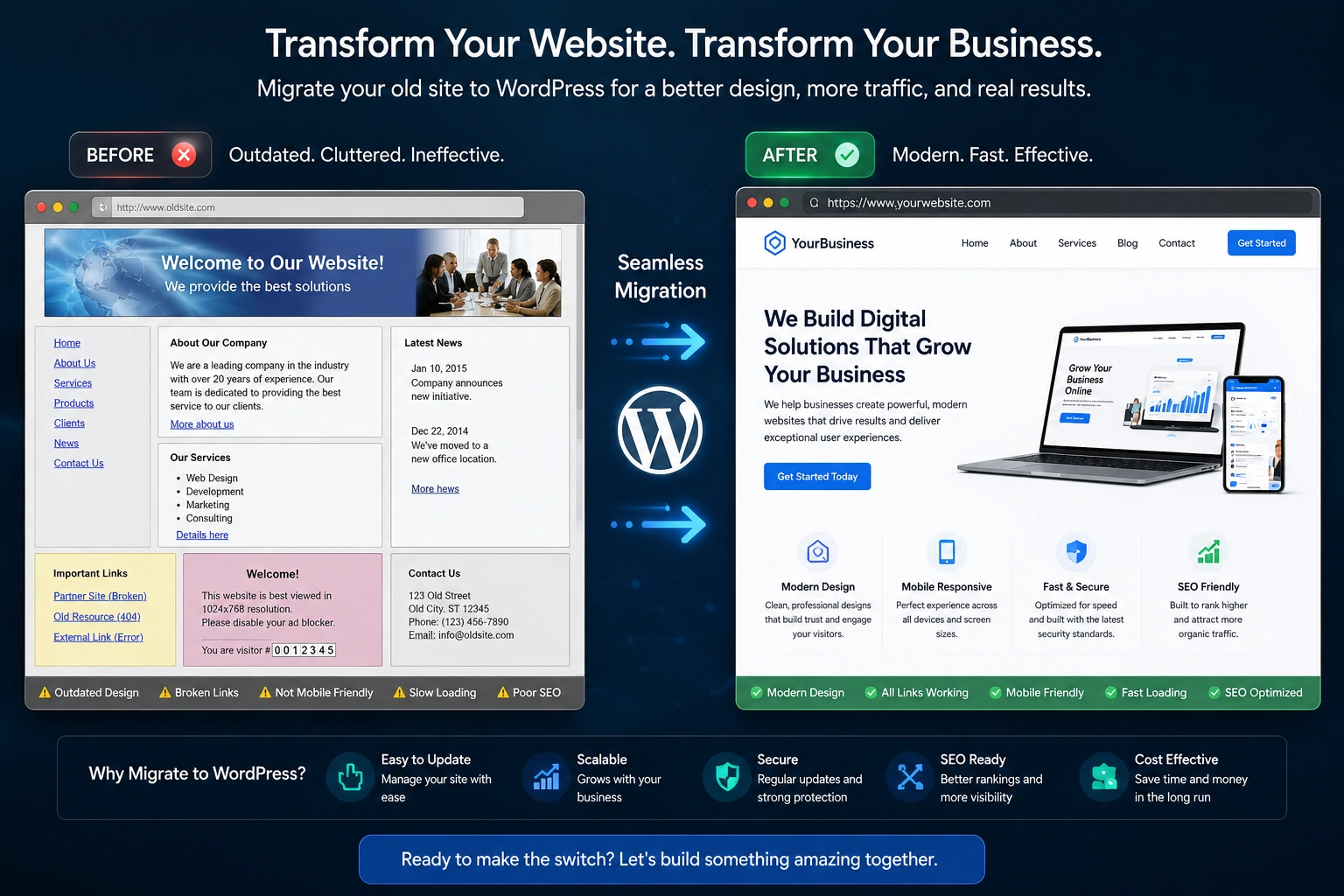
I’ve helped dozens of clients move from rigid old platforms or static HTML sites to a flexible WordPress website. The first time I did it myself years ago, I was nervous about breaking everything. Downtime, lost SEO, broken images — the usual fears. But after refining the process through real projects, I can tell you it’s more straightforward than most people think, especially with the right preparation.
If you’re running a blog on Blogger, an old custom site, or even something built on another builder that’s holding you back, switching to WordPress gives you ownership, scalability, and control. In this guide, I’ll walk you through why it makes sense, the exact steps I use as a WordPress developer, common mistakes to avoid, and how to make the transition as painless as possible.
By the end, you’ll have a clear roadmap to migrate your old site to a WordPress website without losing sleep.
Why Switch to a WordPress Website?
Static sites or outdated CMS platforms often limit what you can do. You want to add a simple contact form? Good luck without coding. Need an online store? Even more work. A WordPress website changes that.
WordPress powers over 40% of the web for good reason. It’s free, open-source, and backed by a massive community at WordPress.org. You get thousands of themes and plugins that let you build almost anything without starting from scratch.
From my experience, clients who switch notice immediate improvements in content management. Updating pages no longer requires a developer for every little change. You can handle it yourself after a short learning curve.
Key Benefits for Your Business and Growth
One of the biggest wins is SEO potential. WordPress is inherently search-engine friendly with clean code, fast-loading themes, and plugins like Yoast or Rank Math. I’ve seen sites gain better rankings after migration because they could finally optimize content properly.
Flexibility is another game-changer. Need membership areas, courses, or e-commerce? Plugins make it simple. Compare that to platforms like Webflow or Shopify, which can lock you into their ecosystem with higher ongoing costs. WordPress gives you true ownership.
Data point: Sites on WordPress often see faster iteration cycles. One client I worked with doubled their blog output in the first three months after switching because publishing became effortless.
For personal brands or small businesses, this means lower long-term costs and more control over your online presence. You’re not paying premium fees just to tweak text.
Real-World Example: From Static Site to Dynamic WordPress Website
A few years back, a freelance consultant came to me with a static HTML site built in 2018. It looked decent but was impossible to update. Traffic was stagnant, and adding new case studies took hours of manual coding.
We migrated everything to a WordPress website using a clean theme and essential plugins. Within weeks, he was publishing new content weekly. His site speed improved, mobile experience got better, and he started ranking for more service-related terms. The investment paid for itself through new leads in under four months.
This isn’t unique. Most transitions I handle follow similar patterns: initial hesitation, followed by excitement once the new site is live.
Step-by-Step Guide to Migrate Your Old Site to WordPress
Here’s the practical process I recommend. I always advise starting on a staging environment to test everything.
- Backup Everything — Use your current host’s tools or a plugin if it’s already on WordPress. Export databases, files, and media. Never skip this.
- Set Up a Fresh WordPress Installation — Choose reliable hosting. Install WordPress via your host’s one-click tool. I often point clients to options that work well with WordPress.
- Choose and Install a Theme — Pick a lightweight, responsive theme. Avoid bloated ones that slow your site. Customize it to match your old branding.
- Migrate Content — For static sites, tools like HTML Import or manual copy-paste work. For other CMS, use dedicated plugins. All-in-One WP Migration or similar tools handle a lot automatically.
- Handle URLs and Redirects — Set up 301 redirects for every old page to the new one. This preserves SEO juice. Use a plugin like Redirection.
- Test Thoroughly — Check forms, links, images, and mobile view. Run speed tests and fix issues before going live.
- Go Live — Update DNS, monitor for a few days, and keep the old site as backup initially.
This numbered approach has saved me countless headaches on client projects.
Common Mistakes and Troubleshooting Tips
Even experienced WordPress developers run into issues. Here are the ones I see most often:
- Ignoring serialized data: URLs in the database need proper replacement. Wrong search-replace can break widgets and settings. Use a tool that handles it automatically.
- Skipping backups: One client lost a day of work because they didn’t test the restore. Always verify backups.
- Plugin overload: Don’t install everything at once. Start minimal and add as needed.
- Poor hosting choice: Cheap shared hosting can cause migration failures on larger sites. Invest in something optimized for WordPress.
- Forgetting SEO elements: Migrate meta tags, sitemaps, and analytics codes.
If you hit a white screen or database errors after migration, check wp-config.php settings and file permissions first. Most issues are fixable with systematic debugging.
When to Hire a WordPress Developer vs DIY
For simple blogs, you can handle it yourself following this guide. But if your site has custom functionality, large media libraries, or e-commerce, working with a WordPress developer saves time and reduces risk.
At my end, we handle complex migrations so you focus on your business. Check out my services at ShihabMorshed.com or explore related digital solutions at DigitalWindIt.
FAQ: Transitioning to WordPress
How long does it take to migrate to a WordPress website?
For small sites, 1–3 days. Larger sites with lots of content or custom features can take 1–2 weeks including testing.
Will my SEO rankings drop after switching?
Usually not, if you set up proper redirects and maintain content quality. In many cases, rankings improve due to better site structure.
Can I migrate from Shopify or Webflow to WordPress?
Yes. Tools and manual methods exist, though you may need help exporting products or design elements cleanly.
How much does a WordPress migration cost?
DIY is mostly free beyond hosting. Professional help ranges from a few hundred to a couple thousand dollars depending on complexity.
Is WordPress secure for business sites?
Absolutely, when kept updated with security plugins. It’s as secure as any modern platform.
What if something breaks during migration?
With good backups, you can always roll back. Test on staging first.
Final Thoughts: Build Something You Actually Own
Transitioning your old site to a WordPress website is one of the best moves for long-term flexibility and growth. You gain control, easier updates, and a platform that scales with your ambitions.
I’ve seen it transform stagnant sites into active, revenue-generating assets time and again. If you’re ready to make the switch but want expert guidance, feel free to reach out. Let’s get your new WordPress website up and running smoothly.
Ready to start? Head over to ShihabMorshed.com and let’s discuss your migration project.