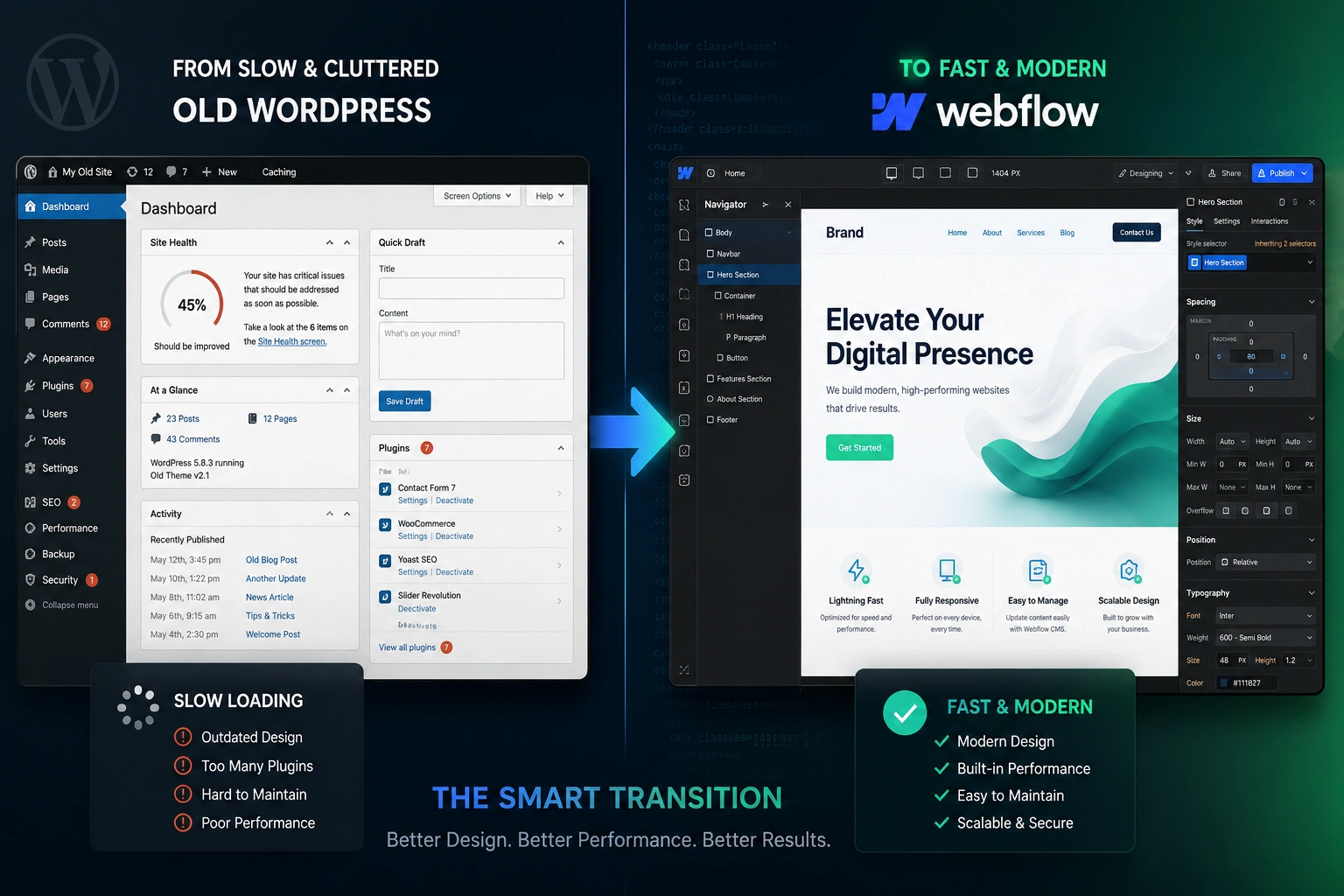
I’ve helped dozens of clients move from clunky, plugin-heavy setups to clean, high-performing Webflow expert sites. The difference is night and day—faster load times, easier updates, and design freedom that actually feels good to work with.
If you’re tired of security updates, slow performance, or fighting with your current CMS, transitioning to Webflow expert might be the upgrade you need. In this guide, I’ll walk you through the process based on real projects I’ve led as a Webflow developer. No fluff—just practical steps that work.
Whether you run a small business site or a growing blog, the principles stay the same. Let’s get into it.
Why Consider a Webflow Migration Now
Many sites built years ago on WordPress or similar platforms start showing their age. Maintenance eats time and money. Security patches pile up. Design updates feel like pulling teeth.
Webflow expert changes that. It gives you visual design control without coding headaches, built-in hosting that’s fast and reliable, and a CMS that’s actually intuitive. No more relying on dozens of plugins that break with every update.
From my experience, clients who migrate often see immediate improvements in speed and user experience. One e-commerce client I worked with dropped their bounce rate significantly after switching because pages loaded almost instantly.
The Real Benefits of Working with a Webflow Expert
Hiring a Webflow agency or experienced Webflow developer can save you months of frustration. I’ve seen teams waste weeks trying to do it themselves only to end up with half-finished projects or broken SEO.
A good Webflow Expert brings:
- Proven migration frameworks
- SEO preservation strategies
- Custom design implementation that actually matches your brand
- Post-launch support and training
At the end of the day, it’s not just about moving content—it’s about building a foundation that grows with your business.
Check out my personal site or agency work for examples of clean Webflow builds.
Webflow vs Traditional Platforms: What Changes
Let’s compare quickly. Traditional setups like WordPress often rely on themes and plugins for functionality. This works until it doesn’t—updates conflict, sites slow down, and security vulnerabilities appear.
Webflow is different. You design visually but get clean, semantic code under the hood. Hosting is included and optimized. CMS collections make dynamic content (blogs, products, portfolios) straightforward without database headaches.
Performance insight: Many migrated sites see 30-70% faster load times. Google loves that, and so do visitors. In one project, we improved Core Web Vitals scores dramatically, which helped organic traffic recover quickly after launch.
Step-by-Step Guide to Migrating Your Site to Webflow
Here’s the practical process I follow with clients. Treat this as your roadmap.
- Audit and Plan Map every page on your current site. Export content where possible (WordPress has decent export tools). Decide what stays, what gets updated, and what can be retired. Create a spreadsheet with old URLs, new URLs, and content notes.
- Backup Everything Full backup of your current site—files, database, media. Test restoring it just in case. This step has saved me more than once.
- Set Up Your Webflow Project Create a new site in Webflow. Plan your structure using their CMS for dynamic pages. I usually start with wireframes in Figma or directly in Webflow.
- Design and Build Recreate key templates. Use Webflow’s visual tools for layouts, interactions, and responsiveness. Focus on mobile-first since that’s where most traffic comes from.
- Migrate Content For WordPress, export posts/pages to CSV and import into Webflow Collections. Map fields carefully—images, rich text, etc. Manual copy works for smaller sites.
- Handle SEO and Redirects Set up 301 redirects for every changed URL. Update meta titles, descriptions, and schema where needed. Submit new sitemap to Google Search Console.
- Test Thoroughly Check forms, links, speed, and mobile experience. Have real users test it.
- Launch and Monitor Point your domain, monitor analytics and Search Console for issues.
This process typically takes 4-8 weeks depending on site size, but the result is worth it.
Common Mistakes and Troubleshooting
I’ve seen these pitfalls repeatedly. Avoid them:
- Skipping redirects — This kills SEO. Map every URL before launch.
- Poor content migration — Images break or formatting gets lost. Always verify after import.
- Ignoring performance — Don’t add too many complex interactions on load. Keep it clean.
- Rushing the launch — Test on staging. I always run a checklist covering broken links, 404s, and mobile views.
- Neglecting training — Your team needs to know how to update the new site. Plan a handover session.
If SEO drops temporarily after migration (it can happen), stay calm. Submit the new sitemap, monitor for crawl errors, and keep creating quality content. Recovery usually happens within weeks if redirects are solid.
One client almost panicked when traffic dipped initially, but consistent monitoring and quick fixes brought it back stronger.
Frequently Asked Questions
How long does a Webflow migration take?
It depends on your site size. Small sites can move in 2-4 weeks. Larger ones with lots of custom functionality take 6-12 weeks. A Webflow developer can give you a realistic timeline after audit.
Will I lose my Google rankings?
Not if done right. Proper redirects and on-page optimization usually preserve or improve rankings. I always prioritize SEO during migration.
Can I migrate without downtime?
Yes. Build the new site on a subdomain or staging, then switch DNS at launch. Minimal disruption.
Is Webflow good for e-commerce?
Absolutely, especially with integrations. For complex stores, evaluate needs carefully or work with a Webflow agency.
Do I need coding skills?
No. Webflow’s visual tools handle most things, but complex logic may benefit from a developer’s help.
How much does hiring a Webflow Expert cost?
Varies widely. Small migrations start a few thousand dollars; full custom builds run higher. The long-term savings on maintenance often pay for it.
Ready to Make the Move?
Transitioning your old site to Webflow is one of the best decisions you can make for long-term growth. You’ll get better performance, easier management, and a site you’re actually proud of.
If you’re serious about this, I’d love to help. As a Webflow developer and Webflow agency partner, I guide clients through every step. Feel free to reach out via my site or check our services at Digital Wind IT.
Ready to build something better? Let’s talk.