I’ve spent years building and fixing WordPress websites for clients across different niches. One thing never changes: a slow site kills momentum. Visitors bounce, Google ranks you lower, and sales slip away.
As a WordPress developer, I’ve turned sluggish sites into fast-loading machines that rank better and convert more. In this post, I’ll walk you through exactly how that happens — from diagnosis to long-term maintenance. You’ll get actionable steps you can use yourself or hand off to a specialist.
If your WordPress website feels laggy, you’re not alone. Many sites built on shared hosting with too many plugins drag under their own weight. The good news? Targeted optimization by someone who knows the platform inside out can cut load times dramatically.
Why Site Speed Matters More Than Ever for Your WordPress Website
Page speed isn’t just a nice-to-have. Google uses Core Web Vitals as ranking signals. Slow sites lose visitors before they even see your content.
Data backs this up. Studies show that a one-second delay in load time can slash conversions by 7% or more. B2B sites loading in one second see conversion rates up to 3x higher than those taking five seconds.
For e-commerce or service sites, that difference translates to real revenue. I’ve seen client sites gain 20-40% more engagement after proper speed work.
A professional WordPress developer understands both the technical side and the business impact. They don’t just chase scores — they build experiences that keep people engaged.
Core Benefits of Hiring a WordPress Developer for Speed Optimization
Working with an experienced WordPress developer delivers more than faster numbers on PageSpeed Insights. Here’s what actually changes:
- Better user experience: Pages feel instant. Visitors stay longer and explore more.
- Improved SEO: Google favors fast sites, especially on mobile.
- Lower bounce rates: No more watching people leave while waiting for images to load.
- Higher conversions: Faster checkout flows and lead forms perform better.
- Scalability: Your site handles traffic spikes without crashing.
I remember one client whose WordPress website was timing out during moderate traffic. After optimization, it handled 5x the visitors smoothly. The difference wasn’t magic — it was systematic fixes.
Real-World Example: Turning a Slow Site Around
Last year, a small business came to me with a WordPress website scoring in the low 30s on mobile PageSpeed. Their beautiful theme loaded heavy fonts, unoptimized images, and too many tracking scripts.
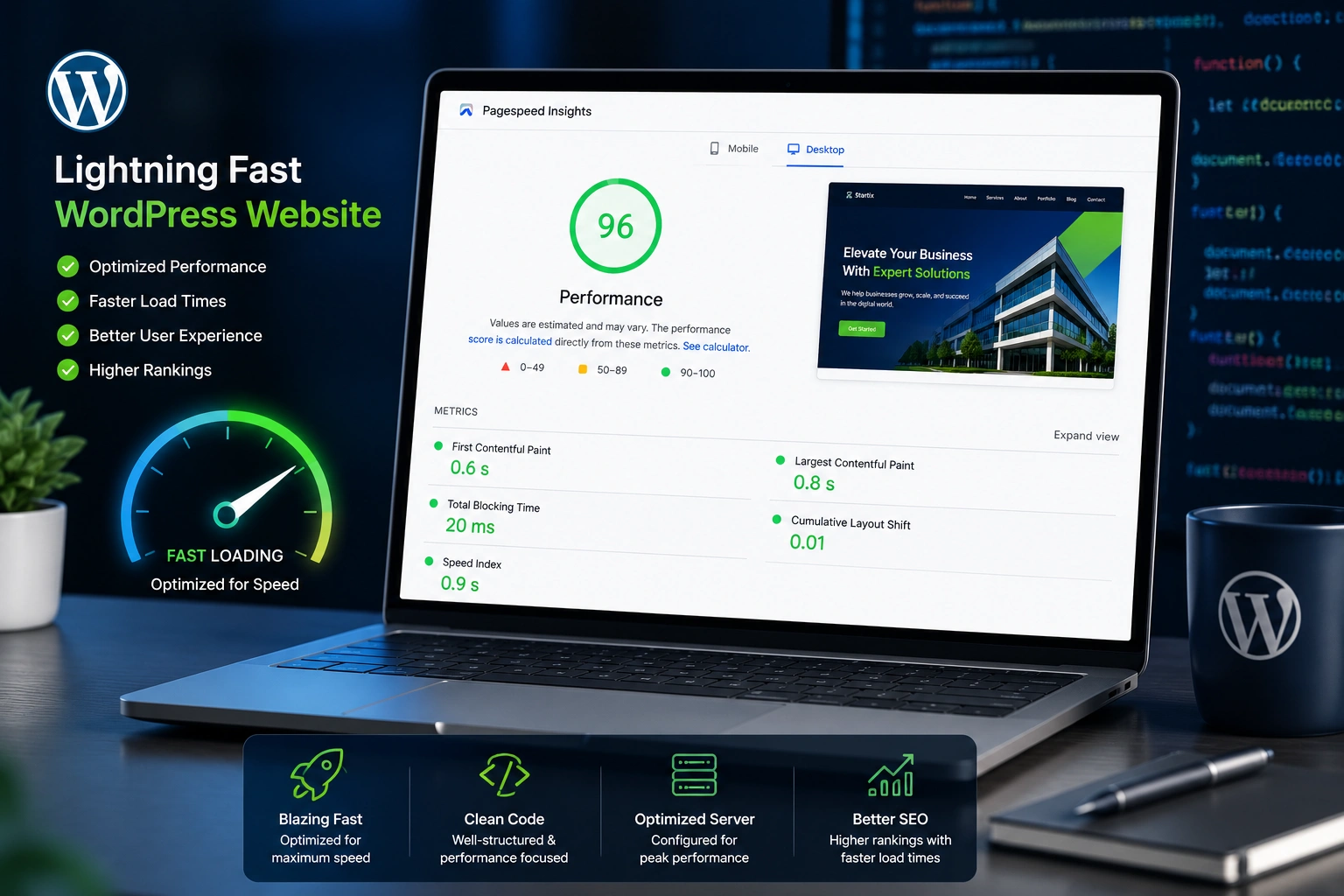
We started with hosting upgrades and caching, then tackled images and scripts. Within two weeks, mobile scores jumped to 92+. Organic traffic increased 45% in the following month, and their form submissions rose noticeably.
This wasn’t a massive enterprise site — just a standard content + lead generation WordPress website. The principles apply broadly.
Step-by-Step: How a WordPress Developer Optimizes Site Speed
Here’s the practical process I follow with clients. You can tackle parts yourself, but complex sites benefit from expert eyes.
- Audit the Current Performance Start with Google PageSpeed Insights, GTmetrix, and WebPageTest. Note TTFB (Time to First Byte), Largest Contentful Paint (LCP), and Interaction to Next Paint (INP). Identify bottlenecks.
- Upgrade Hosting Foundation Shared hosting often fails under pressure. Move to managed WordPress hosting with solid resources, PHP 8.2+, and HTTP/3 support. This single change frequently cuts load times in half.
- Implement Robust Caching Install a quality caching plugin like WP Rocket or LiteSpeed Cache. Set up page caching, browser caching, and object caching (Redis where possible). A good WordPress developer configures this without breaking dynamic elements.
- Optimize Images and Media Convert to WebP or AVIF, compress properly, and enable lazy loading. Use responsive images via srcset. For large sites, offload to a CDN.
- Clean Up and Minify Code Remove unused plugins and themes. Minify CSS, JavaScript, and HTML. Defer non-critical JS and optimize font loading.
- Set Up a CDN and Advanced Tweaks Integrate Cloudflare or similar for global delivery. Fine-tune database queries, enable compression, and implement preloading for critical assets.
- Test and Monitor Run tests after each change. Set up ongoing monitoring with tools like Query Monitor or New Relic.
Follow this systematically and you’ll see consistent gains.
Common Mistakes and Troubleshooting Speed Issues
Even experienced users trip over these pitfalls:
- Overloading with plugins: Every plugin adds overhead. I regularly audit and deactivate 30-50% of them on client sites.
- Unoptimized themes: Premium themes with heavy builders can bloat code. Switch to lightweight options or customize carefully.
- Ignoring database bloat: Revisions, spam comments, and transients pile up. Regular cleanups matter.
- Poor image handling: Uploading huge files directly kills performance.
- Missing updates: Old WordPress core, themes, or plugins create security holes and slowdowns.
Troubleshooting tip: If your site slows after adding a new feature, use a staging environment to test. Disable plugins one by one to isolate the culprit. A WordPress developer spots these issues quickly through logs and profiling.
Comparing DIY vs Professional WordPress Developer Optimization
You can handle basic tweaks yourself — image optimization, basic caching, and updates. But deeper work like custom code adjustments, server-level configs, and ongoing maintenance usually needs expertise.
DIY saves money upfront but risks incomplete fixes or broken functionality. A skilled WordPress developer invests time upfront for faster, more stable long-term results. Many clients tell me the ROI comes quickly through better traffic and conversions.
For comparison, check official guidance on WordPress.org performance best practices.
FAQ: WordPress Website Speed Optimization
How much can a WordPress developer realistically improve my site speed?
Most sites see 50-90% faster load times with proper optimization, depending on the starting point. Complex sites with heavy media need more work.
Is caching enough for good performance?
Caching helps tremendously but isn’t a complete solution. Combine it with image optimization, good hosting, and code cleanup for best results.
How often should I check my WordPress website speed?
Run audits monthly or after major updates. Set up automated monitoring for Core Web Vitals through Google Search Console.
Will speed optimization affect my site’s design?
Done correctly, no. A good WordPress developer preserves your look and feel while improving performance behind the scenes.
Can I optimize a large e-commerce WordPress website?
Absolutely. WooCommerce sites benefit hugely from specialized caching, database optimization, and CDN usage.
What’s the first thing I should do today?
Test your current speed with PageSpeed Insights and upgrade your hosting if TTFB is high.
Ready to Make Your WordPress Website Faster?
A slow WordPress website holds back your business. Whether you’re a blogger, coach, or e-commerce owner, speed directly impacts growth.
As an experienced WordPress developer, I’ve helped many clients achieve fast, reliable sites that work for them instead of against them. If you want expert help implementing these optimizations, feel free to reach out.
Explore more of my work at Shihab Morshed or check services at Digital Wind IT.