Do you want to reduce the valuable time to set up your school? Here is the solution! These important guidelines will help you to start your LearnWorlds school effectively.
Start a Trial
You can create course online with a trial period of 30 days in LearnWorlds (no credit card is mandatory) to set up your school. When the trial period is over or when you think that you are ready enough to go live – you can activate a plan. Choose the available LearnWorlds plans and compare all of their features. The online class platform ensures that your e-learning business gets a professional start.

Manage your Account
To manage your account, first create a new LearnWorlds school or manage your existing school. Moreover, when your account is activated, you can manage your billing information and account details. Stay updated with news & updates, seek assistance if needed, switch to dark mode, or log out. This system is supported by a powerful learning content management system.

Multiple LearnWorlds Schools Dashboard
LearnWorlds, a top learning management systems (LMS) provider, introduces opportunities to manage multiple schools:
Use the same email with centralized login (you can access schools without re-entering your credentials).
Under a single LearnWorlds Dashboard, once registered, all plans will be visible or click on Manage Schools in the three dots of the Dashboards.
If you don’t own a LearnWorlds school in the early stage, you can create a trial school. An organization is automatically created for you. Be the Organization Owner and establish single or multiple schools within this organization.

When you log into your account, you can see the owner’s dashboard, where you can:
- Create and manage LearnWorlds schools.
- Replicate existing schools.
- Create a super admin with specific roles.
- Manage the subscription plan for all of your schools.
This is ideal for agencies like a website design company or a Webflow agency managing multiple clients.
For more on creating multiple schools, follow the link provided.

Dashboard
When setting up a school through the Organization Owner dashboard, you gain access to the School Dashboard, which provides a comprehensive overview of significant events within your school. Metrics include new sign-ups, revenue, product sales, and the number of active learners. This dashboard makes it easier for WordPress website administrators or Shopify Experts to monitor learner engagement.

Theme Explorer
In the Theme Explorer settings, you can customize your school’s responsive web design—page colors, typography, buttons, and layout.
- Go to Website → Theme Explorer.
- Go to Website → Design → Edit in Theme Explorer.
- Go to Website → Design → Edit Website and navigate to Design → Theme Explorer.

Page Creation
After choosing your page settings like brand color and font, you are ready to create your school pages. Start by customizing the Home and Login/Start pages.
- Go to Website → Design → Edit School Site.
- To customize a system page, use the Search bar or Pages Manager.
- To create a new page, click on Add New.
This flexibility benefits Webflow developers and WordPress developers who design course sites for clients.
Course Creation
Once pages are created and customized, start building your courses. You can make online courses in 3 simple steps:
- Create the course.
- Organize sections.
- Add learning activities.
Click the link for a detailed overview of course creation.
Payment Gateways
To accept payments, connect your LearnWorlds school with a payment gateway:
- Go to Settings → Financial → Payment Gateway.
- Select and connect your preferred gateway.
Explore full details to streamline payments using this LMS.
Integrations
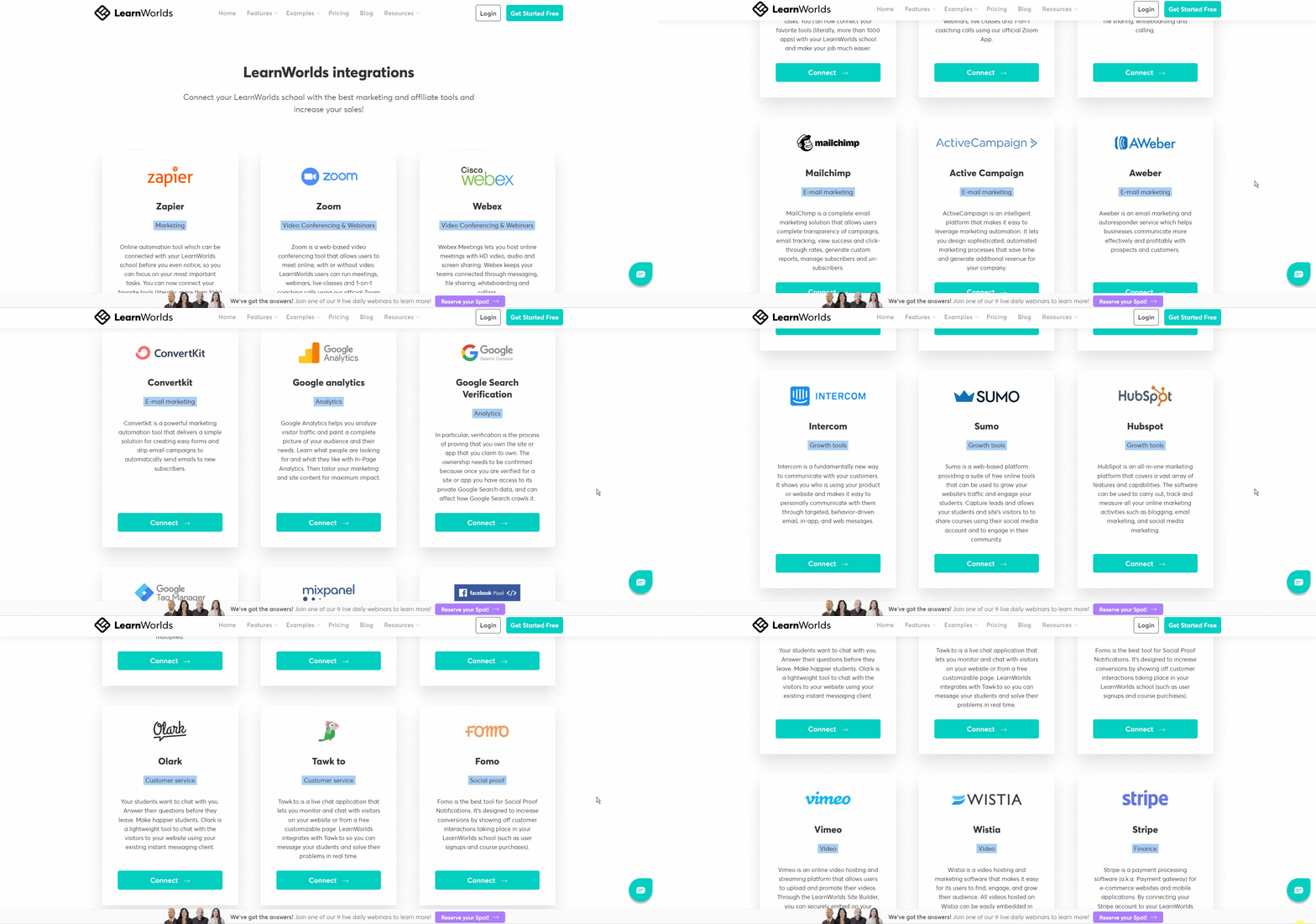
Enhance your LearnWorlds school by integrating with top marketing, affiliate, and analytics tools. This helps you boost course sales whether you’re a Shopify dropshipping business, offering Shopify support, or providing digital training via Webflow Expert services.
Explore all built-in integrations in LearnWorlds.