Identify the Most Important Tips on How to Enhance Your LearnWorlds Website Builder and Admin Dashboard Experience. LearnWorlds website is known for its user-friendly interface and ability to create visually impressive results effortlessly. Whether you’re looking to create course online, make online courses, or simply want to boost your online class platform, these tips are essential for elevating both your Admin Dashboard and Website Builder experience.
Enhance your Admin Dashboard of LearnWorlds for a Better Experience
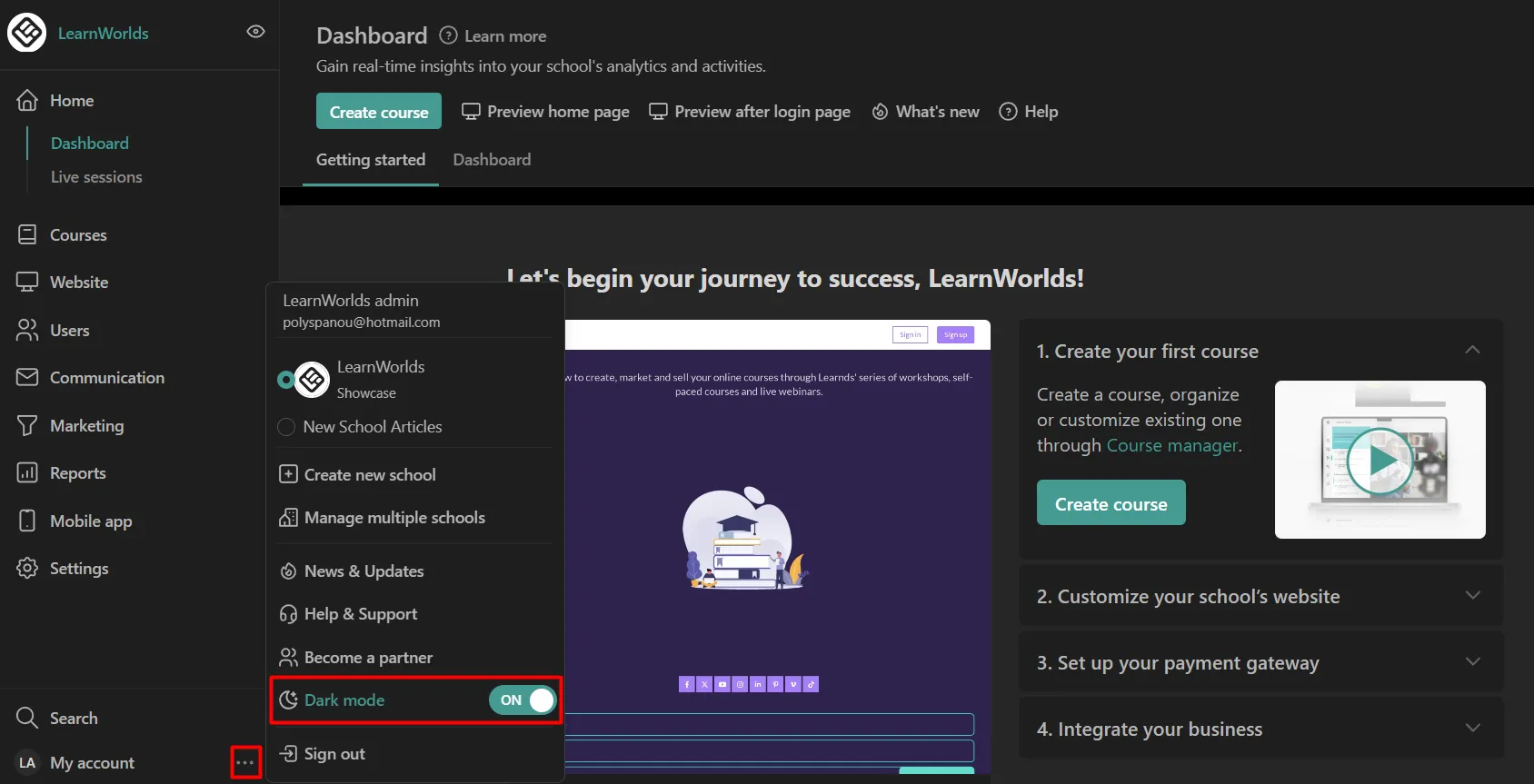
Dark mode
To activate dark mode, first place your cursor over My account and switch the relevant option for best practices when using LearnWorlds. Dark mode minimizes eye strain and also offers a visually pleasing look compared to the typical light mode—an ideal feature for anyone managing a learning management system or a learning content management system for long periods.
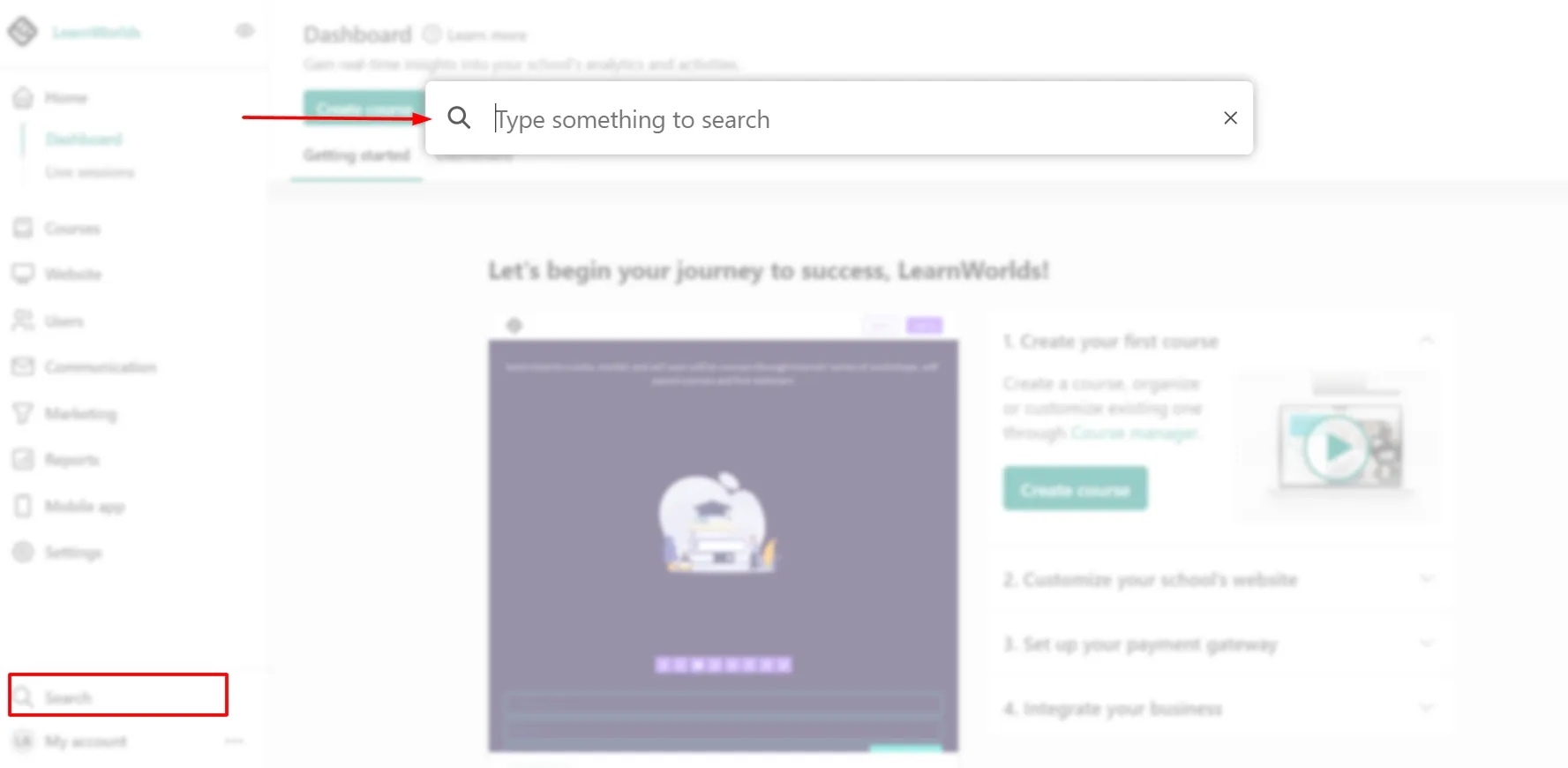
Search function
Go to the search option in your admin dashboard. You can access various tools, settings, courses, and pages within your LearnWorlds School (you can also click on Ctrl + K or Cmd + K as a shortcut). This is particularly helpful when you’re running a feature-rich LMS with multiple course modules.
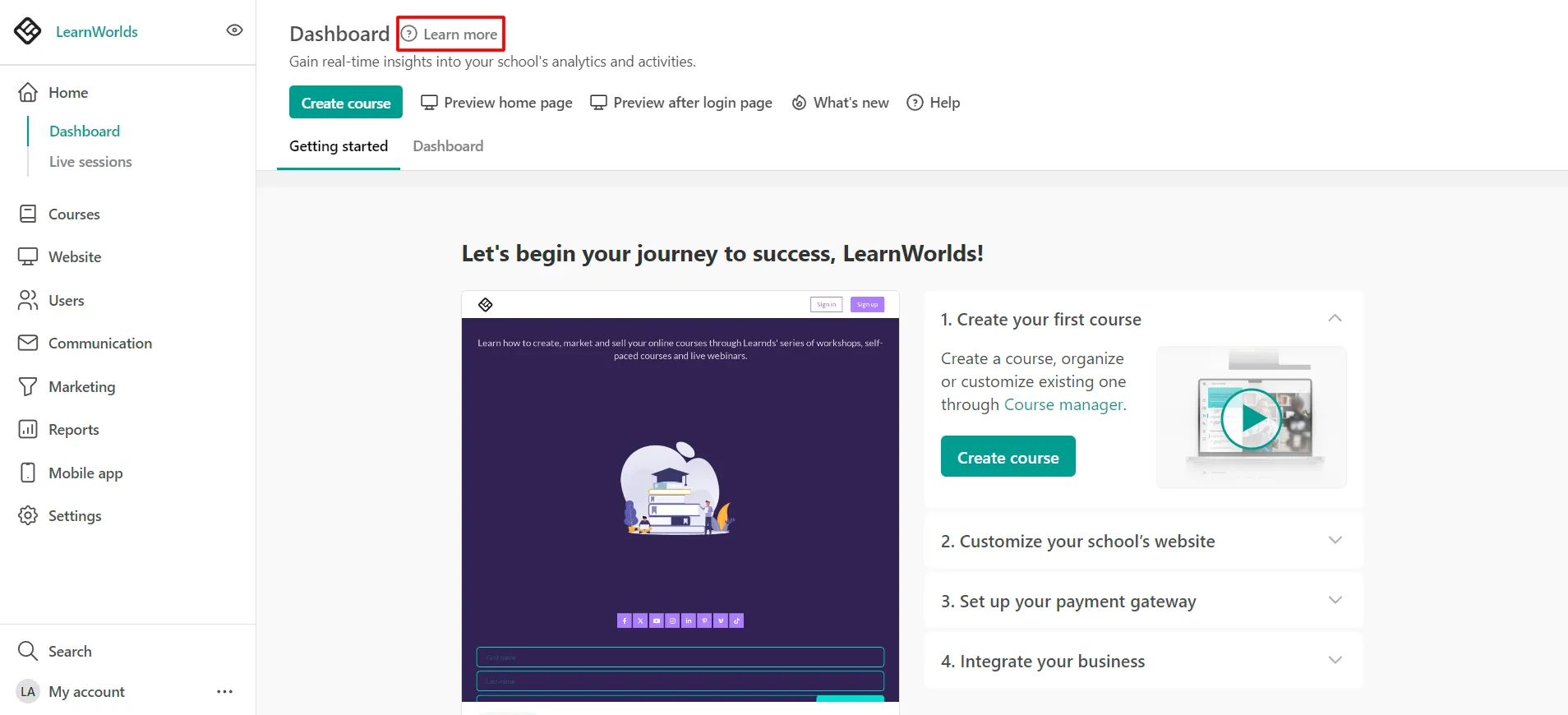
Learn more option
The Learn More button is available at the top of all your admin setting pages. It is intended to connect you to selected materials from our huge collection. This feature ensures that relevant assistance is always within your reach—ideal for WordPress websites owners or Shopify Experts using LearnWorlds as an integration tool.
Enhance Your Website Builder Experience
Work on a single tab
It’s essential to remain on a single browser tab while editing to avoid unconsciously overwriting your own changes on LearnWorlds. This also applies if more than one person is working on the same page from various devices—especially common in teams working through a Webflow agency, websites design company, or Shopify support team.
Do not paste formatted text
We recommend not copying and pasting text from another source without ensuring that the text is unformatted. Even if LearnWorlds tries to remove most formatting, some rules may persist. The safest way is to paste your content into a text editor (e.g., Notepad), then re-copy and paste it into LearnWorlds using Ctrl + Shift + V for Windows or Cmd + Shift + V for macOS. This ensures better responsive web design and a smoother visual flow across devices.
Undo/Redo
You can undo and redo your editing actions in the website builder and assessment/form editor. This option is available for:
· Website builder – Edit pages
· Website builder – Edit popup
· Edit topbar
· Edit footer
· Assessment editor
· Forms
· Certificate editor
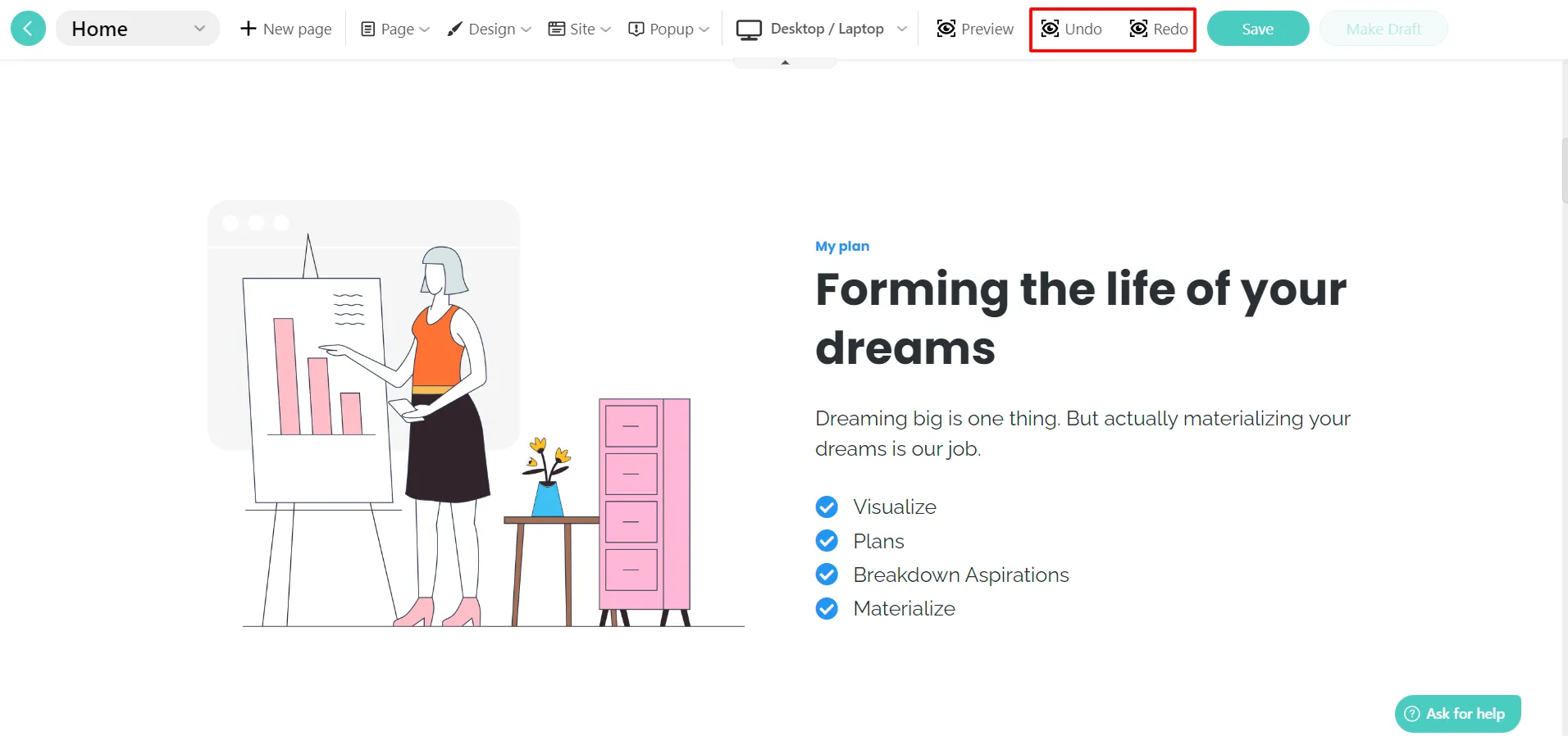
This feature is highly beneficial when you’re experimenting with a website redesign services approach.
Keyboard shortcuts
This article contains all of the keyboard shortcuts for specific actions, such as the undo/redo functions. These are time-saving tools for power users like WordPress developers, Webflow Experts, or webflow developers.
Check your pages’ responsiveness
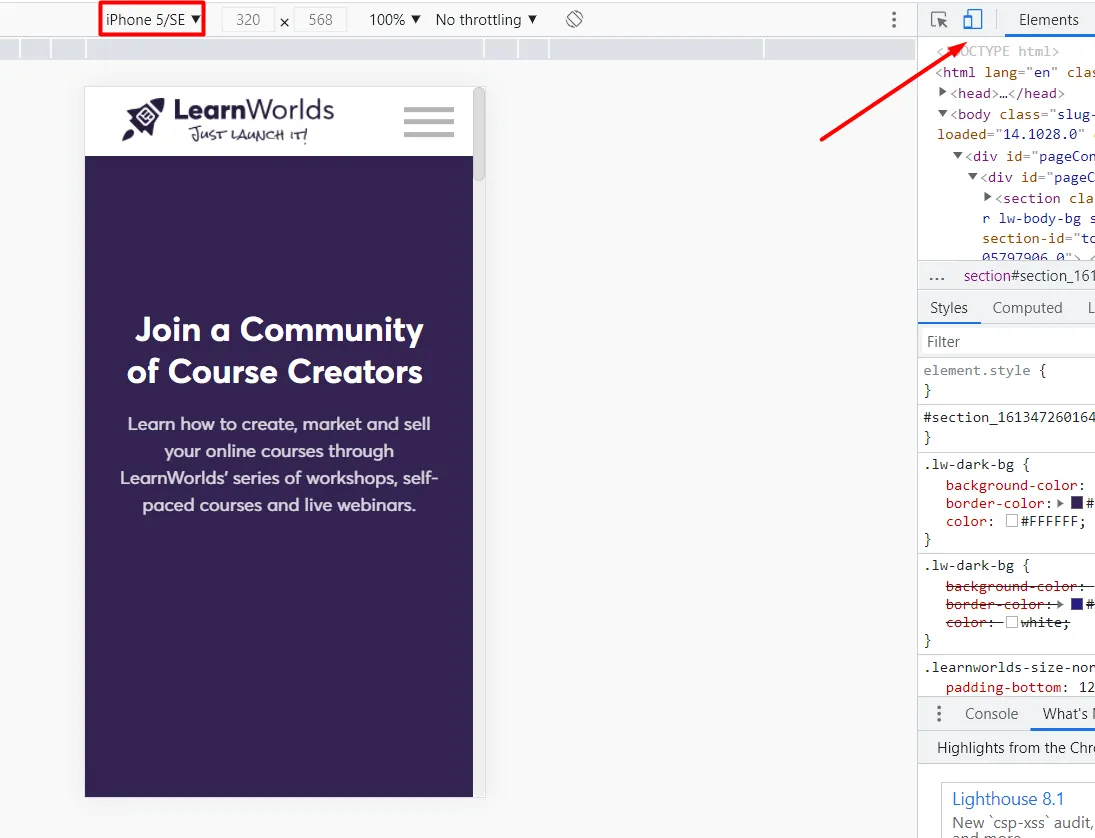
Right-click on a page and click on Inspect. Click on Toggle Device and select the screen size you want to preview your page on. This is essential for ensuring proper responsive web design across desktops, tablets, and mobile devices.
Pin the side form
You can pin the right and left side forms to bring the entire page into view at the center, a layout hack especially appreciated by designers at a websites design company or Webflow agency.
Instantly trigger the login/signup form
You may be experimenting with adjustments to your login and signup form and want to eliminate the need for clicking a sign-in or sign-up button repeatedly. To check your changes:
· Use this link https://{yourschoolhere.learnworlds.com}/?msg=not-logged-in
· Use this link https://{yourschoolhere.learnworlds.com}/?msg=signup
· Use this link https://{yourschoolhere.learnworlds.com}/?msg=resetpassword
(Replace “yourschoolhere” with your actual school URL.)
This feature is perfect for Shopify dropshipping schools or courses managed by a Shopify Expert aiming to reduce user friction.
Test Your Changes
Testing a change (especially when saving is needed)
If you’ve got a fresh idea for one of your pages and want to give it a test run—copy it and freely experiment with anything you like on the cloned version. This is a great way to maintain stability on your live online class platform.
Testing a change on the top bar/footer of your school
On a cloned page, go to Page → Page properties and select a custom page top bar/footer. Work on the clone’s top bar without changing the main school’s top bar. Delete the cloned page when you are done. This ensures your school runs smoothly without interruptions, even if it’s integrated with WordPress websites or Shopify support tools.
Incognito mode is God
Use incognito mode to view your LearnWorlds School website from the perspective of a logged-out user. Right-click on the browser icon on your taskbar, click incognito mode and paste the live URL. Alternatively, hit Ctrl + Shift + N (Windows) or Cmd + Shift + N (Mac). Ideal for testing WordPress developer plugins or embedded LMS functionalities.
Test user account
Take incognito mode a step further—register to your school as a user and see the changes you are applying in author mode just like a regular user. This is an ideal practice when working with Shopify dropshipping training modules or learning content management system based experiences.
For best practices for using LearnWorlds, you can follow the above instructions to enjoy the best experience from your LearnWorlds school, whether you’re a solo educator, a WordPress developer, a Webflow Expert, or part of a larger websites design company.