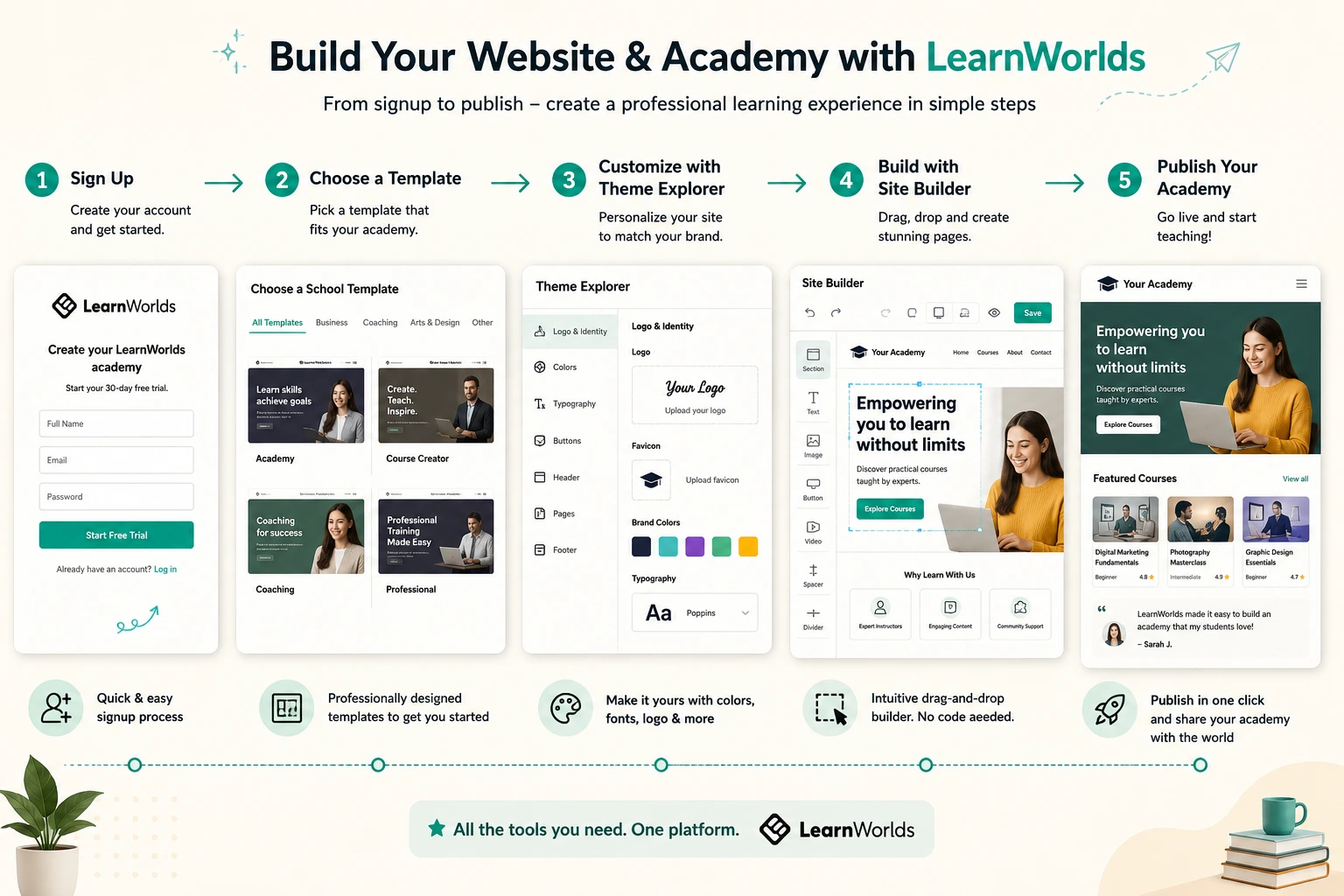
Setting up a professional online academy shouldn’t take weeks of coding or design headaches. I’ve walked many creators through LearnWorlds launches, and the platform’s structure makes the whole process logical and fast—especially with its Quick Start Guides, Site Builder, and ready-made templates.
LearnWorlds is an online class platform where you build your entire school: public website for marketing and sales, plus the learner dashboard and course areas. The workflow starts with basic setup, moves to design and customization, then content integration, and ends with launch.
This step-by-step guide follows the official Quick Start path and real experience, so you can go from signup to live site efficiently.
Phase 1: Sign Up and Initial School Setup
Everything begins here—get your foundation right.
- Sign up for the free trial at LearnWorlds (no card needed initially).
- During onboarding, choose a template (Site Flavor) from 50+ industry-specific options—coaching, fitness, business, etc.
- Go to Settings → School Settings → School Info: Add your school name (appears in titles/emails), description, contact details.
- Set site language (default interface for learners).
- Enable GDPR/privacy settings if needed (cookies consent, etc.).
- Connect custom domain if you have one (or use the default subdomain first).
This takes 10-20 minutes and sets your brand basics.
Phase 2: Customize Branding and Visual Theme
Make it look like yours without starting from scratch.
- Upload logo and favicon in Settings → School Settings → Branding.
- Open Website → Theme Explorer: This is your global style hub.
- Pick or customize colors (primary, accents, backgrounds).
- Choose typography (fonts from Google Fonts, headings/body).
- Style buttons, inputs, section layouts for consistency.
- Apply changes site-wide—saves hours compared to manual tweaks.
Theme Explorer keeps everything cohesive as you add pages.
Phase 3: Build and Edit Your Website Pages
The Site Builder is drag-and-drop—no code required.
- Navigate to Website → Design → Edit Website.
- Start with the homepage: Update hero section, add text/images, insert widgets (course catalog, testimonials, forms, countdowns).
- Create additional pages: Click Add → New Page → choose template (landing, about, contact, etc.) or blank.
- Add sections: Drag from left panel (text, images, videos, catalogs).
- Customize: Edit layouts, add scrolling effects, animations, visibility rules (show/hide by user/device).
- Set navigation: Configure main menu, footer, after-login redirects.
- Use Pages Manager for organization, publishing/unpublishing.
Focus on key pages first: homepage, course catalog, sales/landing pages.
Phase 4: Integrate Courses and Learning Content
Your website ties into courses for seamless flow.
- Go to Courses & Programs → Courses → Create Course (use Wizard for basics: title, image, description).
- Add sections/lessons: Upload videos, insert interactive elements (quizzes, assignments).
- Link from site: Add catalog widgets to pages so visitors see previews and enroll buttons.
- Set pricing/offers in course settings (one-time, subscriptions, etc.).
Preview as learner to ensure smooth transition from public site to course player.
Step-by-Step Full Process Summary
Here’s the consolidated workflow most creators follow:
- Sign up and complete onboarding (choose initial template).
- Configure school basics in Settings (name, language, privacy, domain).
- Brand in School Settings (logo, favicon).
- Customize theme in Theme Explorer (colors, fonts, buttons).
- Edit homepage in Site Builder (update content, add widgets).
- Create essential pages (about, courses catalog, contact) via Add New Page.
- Set up navigation and menus.
- Build/test your first course and link it from site pages.
- Preview full learner journey (desktop/mobile).
- Publish pages and go live—promote your site.
- Monitor with built-in analytics and refine.
You can launch a basic site in 1-3 days; polish over time.
Real-World Example and Data Insight
A consultant I guided started with a coaching template. She followed the Quick Start: set up school info day 1, themed and built homepage day 2, added course previews and sales page day 3. By week 1, she had a live academy with enrollments. Her site felt custom because of targeted Theme Explorer tweaks.
Insight: LearnWorlds‘ integrated builder (Site Builder + templates) lets creators launch faster than fragmented tools—many report 50-70% time savings on website setup compared to WordPress + LMS plugins.
Common Mistakes and Troubleshooting
- Skipping school setup — Branding feels off later. Fix: Do basics first.
- Overloading pages — Slow load times. Fix: Limit sections/widgets, compress images.
- Ignoring mobile preview — Breaks UX. Fix: Use device preview constantly.
- Default slugs/URLs — Poor SEO. Fix: Edit page properties for clean slugs.
- Not testing as learner — Surprises post-launch. Fix: Create test account.
- Delaying publish — Stalls momentum. Fix: Launch minimum viable site, iterate.
Test small changes often.
Frequently Asked Questions
How long does it take to build a LearnWorlds website?
A basic professional site takes 1-3 days; full customization 1-2 weeks depending on content.
Do I need coding skills for the Site Builder?
No—it’s drag-and-drop with visual editing; custom CSS/JS optional for advanced tweaks.
Can I change templates after building?
Yes—manage Site Flavors to import/export and switch without losing pages.
What if I get stuck during setup?
Use the Help Center (700+ articles) or 24/7 support; Quick Start Guides are excellent.
How do I make the site mobile-friendly?
Templates are responsive; use device authoring in Builder to adjust per screen size.
Where can I find official step-by-step guides?
Start with Quick Start Guide 3: Design Your Website at LearnWorlds Help Center.
Launch Your Academy with Confidence Using LearnWorlds
Building a LearnWorlds website follows a clear, creator-friendly process: setup basics, brand consistently, design pages intuitively, integrate courses, and publish. The combination of templates, Theme Explorer, and Site Builder lets you create course online professionally without tech barriers.
Follow the steps above in your free trial—you’ll have a functional site quicker than you think.For more on course integration, monetization, or troubleshooting specific issues, visithttps://shihabmorshed.com/. What’s your biggest concern when building an online academy site? Let me know in the comments.